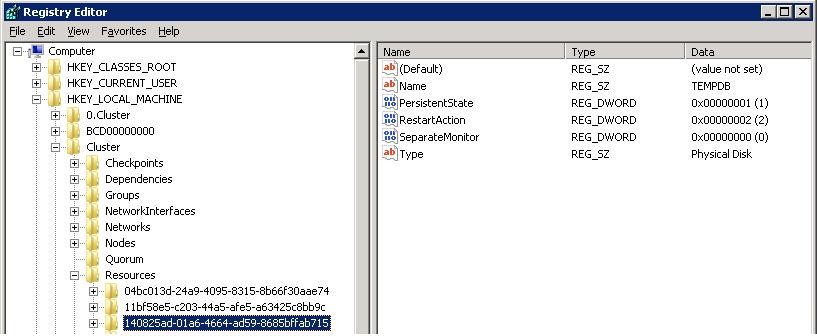
From that graphical snap-in, you can define queries with all sorts of criteria like start- and ending time
of the events that you want to see.
However, in some cases, you still want to view all the events in a plain flat file.
In that case, you need to create one. For that, you can use the "cluster.exe" command.
Examples:
In the most simple form, a report will be generated in "the %systemroot%\cluster\reports" directory, using:
C:\TEMP> cluster log /gen
Some nice switches can be used like:
/Copy:directory (for example: /Copy:logs, where logs should be a direcory below "your current path").
/Span:minutes (for example /Span:30, so that your log will only contains entries from the last 30 minutes).
Section 4: What is the "quorum", or "witness disk, and what are the quorum modes?
In a Windows Failover Cluster, there are "shared" resources, like disks on a SAN. But actually only one nodemay access it "at the time". Unless ofcourse, you do a manual Failover to another node, or if the owner mode fails, then automatically another
node takes over (it becomes the new owner then).
Note:
There are other types of clusters where all nodes accesses (for example) the same database simultaneously,
like Oracle RAC. That's not the case in Failover Clustering.
However, the Oracle 11gR2/12c low-end RAC implementation "RAC One Node" resembles the "Microsoft Failover Cluster"
technology, very closely. Both are Failover implementations.
If you want HA, but avoid the complexity of a full RAC implementation, "RAC One Node" is a good choice for 2 nodes.
- Suppose we have a 2 node Failover Cluster. One Node (node 1) owns the resources. The other node (node 2), is just "standby"
in case the primary (node 1) fails, in which case node 2 takes over and becomes the owner of the resources.
This is an example of an "active/passive" Failover Cluster, where one node does work, and the other is just standby.
- Suppose we have a 2 node Failover Cluster again. One Node (node 1) owns a set of resources (like disks), and the other node (node 2)
runs another application and owns a different set of resources.
In this case, both nodes are doing work, while being standby for the other node. Ofcourse, one such node must be powerfull enough
to run both apps and then also is the owner of both sets of resources. This is called an "active/active" Failover Cluster,
but both nodes runs different applications and owns different resources (in normal operation).
A good example might be two SQL Server instances, where one each node (in normal operation), one instance is running.
Instead of only two nodes, you can create a Cluster with 3 or more nodes. Suppose you have a 3 node Failover cluster.
It would be a waste if two nodes were just having a standby role only.
So, usually, different applications with their own resources, are distributed accross all nodes. Each node then can also
be a "standby" in case the original owner fails.
With any number of nodes (2, 3, 4, 5 etc..), a "strange" situation might happen, if not some "referree" mechanism was build in.
Suppose in a 2 node Failover Cluster, both nodes would think they are the owner of some resource. That's an very
odd and dangerous situation. It can be solved however, by some registry, or "witness", which has a "vote" too.
In a 2 node situation, or actually, in an Cluster with an even number of nodes, a file on a disk may serve as the "witness"
that counts as an extra vote. If this file would be an "up-to-date" registry of the status of all nodes, then it indeed would work.
In a 2 node cluster, suppose that node 1 and node 2 both claim to be the owner, and the witness says that node 2 is the true owner,
then it would resolve the crisis.
So, in principle, here we have 3 possible "votes" (node 1, node 2, the file on some shared disk), and if 2 votes "agree", it's problem solved.
In such a situation, people also say that "the quorum has been met".
In an odd number of nodes, in principle, a "witness" (as for example a diskfile), is not neccessary. In this case, simply a majority
of nodes can decide which node is the true owner of a resource. So, for example, in a 3 node cluster, if 2 nodes agree, it's problem solved.
So, with an odd number of nodes (N), "the quorum has been met" if (1/2 N + 1) are in agreement.
If there are failures in a Cluster, and the required "quorum will not be reached anymore", the Cluster must stop working.
So, the quorum determines how many failures a Cluster can sustain.
Ofcourse, any Manufacturer has it's own type of implementation. Here is how Microsoft sees it with Clustering
based on "Windows Server 2008".
- Node Majority: It's recommended for clusters with an odd number of nodes.
For example, a 5 node cluster can sustain 2 node failures. With 3 remaining nodes, there is still "a majority".
A "disk based witness" is not needed (in principle). - Node and Disk Majority: This is recommended for clusters with an even number of nodes.
In an extreme case, if half the nodes are "up", and if the "disk witness" remains online, the cluster keeps running.
Because we have an even number of nodes, we need an extra facility (like a disk witness), since half of the nodes may
have opinion "A", and the other half of the nodes may have opinion "B", which then cannot be resolved.
Also, if half of the nodes fail, we still have "a majority". The "disk witness" (quorum disk), really is a set of files on some specific LUN (disk), which is called the "quorum disk". - Node and File Share Majority: This is not fundamentally different from (2).
So, it's similar to "Node and Disk Majority", but this time the quorum files (the "witness") are on a file share
The witness file share should not reside on any node in the cluster, and it should be "visible" to all nodes in the cluster. - No Majority: Disk Only:
Only the disk witness is decisive here. You might have any number of nodes, and nodes might fail. As long as one node
still functions, and the disk witness is "up" too, the Cluster is "up".
Sounds like a strange model, but might be usefull is certain situations.
Clustering based on Windows Server 2012, knows quite a few improvements, and is also much more prepared
for "virtual environments".
If a "witness disk" is needed (2: Node and Disk Majority), often a small SAN LUN is created (like 512M or 1G) and by convention,
driveletter "Q:" is assigned, which makes it easy to distinguish from other Cluster LUNs.
If you do not use a "witness disk", like in (1) "Node Majority", then (in principle) a Quorum disk is not neccessary.
Section 5: Other Cluster features: VIP, CNO and Computer Objects, Resource Groups and other stuff.
Fig 3. Older, typical Win2K3 cluster setup.
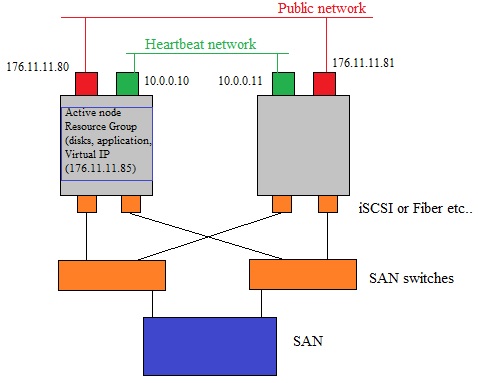
Yes.., true..., a picture like figure 3 above, is a rather silly picture, I admit that. And it looks like a Win2K3 cluster.
But, although it's very simple, it's meant to highlight a few important properties of Windows Failover Clusters.
A cluster usually tries to avoid any single "Point Of Failure". That's evident if you have 3,4,5 or 6 Nodes in the Cluster.
However, it tries to apply that to any component. For example, 2 networkcards might be "teamed" so that if one goes down,
you still have the other one operational.
In general, people try to balance "costs" with "High Availablitity" here.
Next, we are going to discuss some important Cluster features. Note that we already have dealt with the "quorum" and
"Cluster database" (see sections 1 and 3). So, those will not be mentioned in this section.
5.1 Heartbeat and Inter Cluster communication:
You may consider the heartbeat as a sort of frequent "Hello" packet, in order to check the statusof all nodes in the Cluster.
Usually, the heartbeat is send (per default) every second. Also, the default heartbeat configuration will allow for five missed heartbeats
for a particular node, before the other nodes think that it has become unavailable. These values can be different if
virtualized resources are present.
The most important parameters are:
- Delay: This defines the frequency at which cluster heartbeats are sent between nodes. It's the number of seconds
before the next heartbeat is sent.
- Threshold: This defines the number of heartbeats which are missed before the cluster takes recovery action.
If your system supports it, you might try:
PS C:\TEMP> Get-Cluster | fl *subnet*
PS C:\TEMP> Get-ClusterNetwork | FT Name, Metric
Figure 3 above, suggests a "seperate" network for the Heartbeat "pulse" from, and to, all nodes.
But that's not "a must" anymore.
I only painted the "private" Heartbeat network, to draw your attention to that process.
A bit stronger stated: Officially, there is no "private" or "public" network anymore since Win2K8.
However, using the older pre-Win2K8 naming convention, might help to differentiate between types of traffic.
- In Win2K3 (and before), it was like this:
You must have a Public network, which clients use to connect to Cluster resources.
You may have a (private) Cluster-Heartbeat network, for "intercluster communication", like "ClusDB updates" and Heartbeat.
You may have a SAN network, which the Cluster uses for shared disk access (datadisks, quorum)
- As of Win2K8, the Hearbeat uses a virtualized adapter, mapped to any usable physical network,
with optional fallback on other possibly existing networks.
In a way you may simply say: you might have one or more networks, and an optional additional SAN network.
From the Failover Cluster manager, you may open the properties of the configured networks. In general, here you can
configure for the following:
- Disabled for Cluster Communication. (Value 0). For example, for the SAN network.
- Enabled for Cluster Communication only. (Value 1). For example, for a network you see as the "Private" network.
- Enabled for client and cluster communication (Value 2). For example, the Public network.
5.2 Nodes, Names, Virtual Server, Resource Groups (Services and Applications):
Fig 4. The "Failover Cluster Manager (Win2K8)"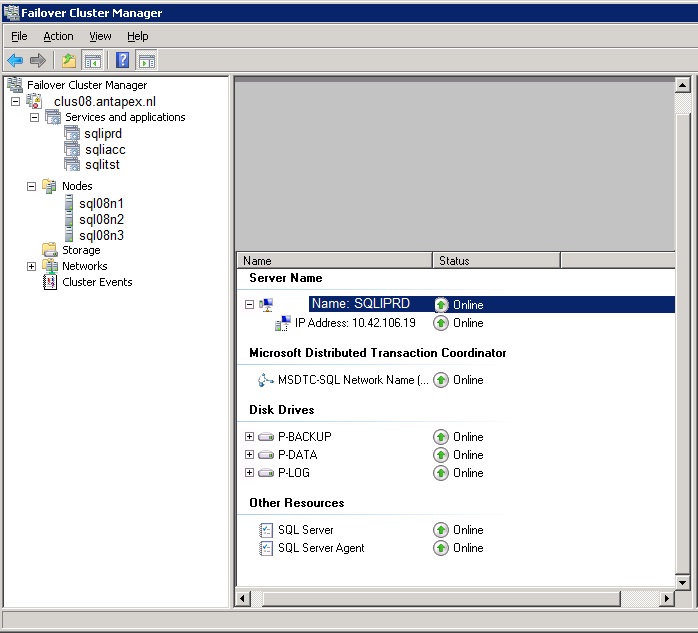
In figure 4, the Failover Cluster Manager is connected to the 3-Node Cluster "CLUS08", which consists
of the membernodes SQL08N1, SQL08N2 and SQL08N3.
Since it's an odd number of nodes, the "Node Majority" model is appropriate here (see section 3).
Notice how "neat" this graphical utility presents you containers as "Nodes", "Storage", "Networks", "Events",
and "Services and Applications".
"Services and Applications", used to be called "Resource Groups", in former Cluster versions.
A "Resource Group", (or "Service and Application"), like SQLPRD shown in figure 4, defines a "Unit for Failover".
So, suppose "SQLPRD" is running on node SQL08N1. If this node "panics", then this Resource group (or application)
will failover (or gets restarted actually) on SQL08N2 or SQL08N3.
So, in a matter of seconds, "SQLPRD" is up-and-running again on (for example) SQL08N2, and clients can connect again.
In this process, the "Virtual IP" which is associated with an application, is most important.
Here is the "magic" behind it:
The 3 Nodes which are connected to the Public network, Ofcourse, each one uses an unique IP address.
Say the nodes use the following addresses:
SQL08N1: 172.11.11.101
SQL08N2: 172.11.11.102
SQL08N3: 172.11.11.103
The machines are ofcourse registered in DNS, with those addresses.
Now, if we have also have registered in DNS, a sort of "special" IP's of the applications (like SQLPRD) as well,
then you will see in a minute, that clients do not connect to a "physical" IP address of a Node,
but to a socalled "Virtual IP".
Just see what happens if we register the following addresses in DNS as well:
SQLPRD: 172.11.11.104
SQLACC: 172.11.11.105
SQLTST: 172.11.11.106
Now, suppose SQLPRD runs on node SQL08N1. The Virtual IP of SQLPRD (172.11.11.104) is mapped to the network adapter
of SQL08N1 as well. So, if clients are looking for SQLPRD, the DNS system returns 172.11.11.104 (the Virtual IP or VIP).
Now, this VIP is part of the Resource Group "SQLPRD" as well !
Suppose a failover takes place, and SQLPRD fails over to SQL08N2. Note that everything of the Resource Group fails over,
and SQLPRD gets restarted on SQL08N2, and the VIP "72.11.11.104" will now get mapped to the network adapter of SQL08N2.
So, if clients are looking for SQLPRD, the DNS system returns 172.11.11.104 again, but this time that IP address is
associated with SQL08N2. Thus connections will be established to SQL08N2.
Fig 5. Failover of Application SQLPRD from SQL08N1 to SQL08N2, inclusive the VIP.
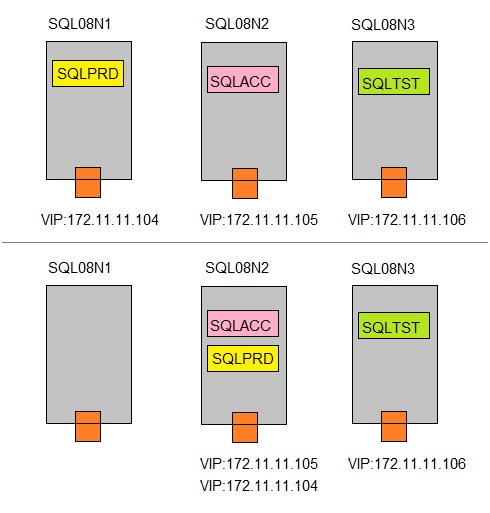
- Upper figure: 3 SQL Server instances, each running on a seperate node, in a 3 node Cluster.
- Lower figure: Suppose SQL08N1 fails. The SQLPRD instance will failover to SQL08N2, inclusive it's VIP.
5.3 Registration in Active Directory:
The clustername, nodenames, and application instances (services and applications), must be registered in DNS.This is mainly for the clients, so that they can resolve and lookup the services of the Clustered applications.
However, starting from Win2K8 clusters, registration of Cluster entities in AD is a fact too.
This is due to the new Microsoft Security model.
To start with, the "CNO" is the "computer object" in Active Directory, associated with the Cluster Name.
The CNO (Computer Named Object) is actually a representation of the entire Cluster entity.
Also, all Cluster Nodes will have a computer object in AD too (Virtual Computer Objects - VCO's).
Per default, it is all placed in "Computers" container.
Taken certain measures before installing the Cluster, it is possible to have those objects placed in a more
desirable AD location, but then it's possible that the CNO lacks permissions for internal cluster operations.
The most important thing to consider here, is that if those objects are moved or deleted, it will result
in a severely "hurt" Cluster.
This makes that "awareness" of all those who are allowed to modify AD, is critical.
Although deleted objects can be restored again, it's by no means a trivial task.
5.4 Ports that need to open:
- Cluster communications use the port 3343 on TCP/UDP.
- "Microsoft-DS", or TCP port 445, must be open too.
- For classical RPC operations, 135 TCP/UDP must be opened.
- For NBT services, and others, ports 135, 137, 139 has to be open.
- And ofcourse any clustered application specific ports must be open.
Section 6. Only for Win2K3: Repair the Cluster Database and Quorum files.
This is almost "obsolete" since Win2K3 Server is pretty old, and thus Clusters based on Win2K3 too.However, I already had this section compiled from years back, so why not place it here too.
Before stepping into "difficult/dangerous routes", always first explore the following trivial points,
in case you have problems with a Win2K3 based cluster:
6.1 "Super trivial" stuff to check first:
- Check the eventviewer. If for example the "RPC Server" is unvailable on some Node, reboot it.
RPC is the "motoroil" where Windows runs on. - Check the recent events as listed in the "Cluster Manager".
You Will get Hints from those events for sure. - Using the "Cluster Manager": check on the health of all the resource groups. Are they all online?
- Using an elevated command prompt on all Nodes: enter "cluster node".
Get a normal response back? (that is, it reports "online nodes"). - Ping all the Nodes on their hostnames. Get a Response back from all of them?
- Ping the VIP's. Get a Response back from all of them?
- All Nodes needs connectivity to AD and DNS. Is that OK?
- Were there any changes on "service accounts of Applications", which are relevant
for the Cluster, at all recently? - A Firewall activated recently? Rules added or changed recently?
Some ports MUST be open for cluster communication. See section 5.4. - If used: check the "witness disk"/"quorum drive" from the Node that is the owner.
- If used: check the "witness disk"/"Fileshare". It must be visible from all nodes.
- Check if there is a duplicate Hostname or IP on the network (should have been in the eventvwr logs).
- Super trivial: check all connections, cables, switches.
- Check the "C:\Windows\Cluster\ClusDB" file on all Nodes. See any "abnormal" date/time property,
or does it all seems to be "reasonable"? Are the sizes of the files of the same "order", or are there rather large exceptions? - Using "regedit", take a look at the "HKLM\Cluster" hives. Is it loaded? Does it all looks "reasonable"?
16. When performing a Manual Failover, or putting a resource/service offline or online, we are used
to the fact that it usually happens in just mere seconds.
However, sometimes the cluster service needs a little more time, like a few minutes or so.
So if performing actions like Failover, putting resources online/offline etc.., hold your horses for a few minutes.
17. If there are intermittent problems in the Cluster once in a while, and none of the above applies,
did you recently installed/upgraded Anti-Virus software? In some cases the AV software may not properly handle files
in "Systemroot%\Cluster".
Check this, and if neccessary, make exclusions in the locations that must be scanned.
6.2 Repair the Cluster Database and/or Quorum files.
Use this only on a Windows 2003 Cluster:This section deals with:
- A Cluster on Win2K3
- The Quorum files: Chkxxx.tmp and Quolog.log
- The Cluster database: %systemroot%\cluster\CLUSDB
Error: How to handle a situation where the Cluster Quorum or Database might be missing or corrupt.
This section is Potentially Dangerous! Before considering using this:
crosscheck with other sources, or consult MS Support.
The Quorum files are present on the Quorum drive (say Q:) in for example, the "Q:\MSCS" directory.
The Cluster Database "CLUSDB" is present in the "%systemroot%\cluster" directory.
- For the Quorum, the following files should exist:
⇒ Chkxxx.tmp
It is a sort of copy of the cluster configuration database "%Systemroot\Cluster\CLUSDB"
Suppose you have a 2 node cluster. Both then will have a "%Systemroot\Cluster\CLUSDB" database.
Just consider this quorum file (on a shared disk) as the master compared to those local databases.
To proof that: suppose you add a node, then it will create a local CLUSDB copy from the Chkxxx.tmp file.
Here we will consider the situation where the file(s) in Q:\MSCS has gone bad.
If you have the original release of Windows Server 2003, the Cluster service will not start if
the Chkxxx.tmp file is missing or corrupt. However, if you have Windows Server 2003 as of SP1,
in many situations the Cluster service can automatically re-create this file if it is missing or corrupt.
⇒ Quolog.log
The quorum log, which records changes to the cluster configuration database, but only those changes
that occur while one or more nodes are down. The file exists even when all nodes are functioning,
but information is added to it only when a node is offline. Information in the log is carefully
marked according to sequence and timing so that it can be used correctly when nodes go down and come back up.
If you have the original release of Windows Server 2003, the Cluster service will not start if Quolog.log
is missing or corrupt. However, if you have Windows Server 2003 as of SP1, in many situations the Cluster service
can automatically re-create this file if it is missing or corrupt.
⇒ Cluster database CLUSDB:
Cluster database—clusdb
A hive under HKLM\Cluster that is physically stored as the file "%Systemroot%\Cluster\Clusdb".
When a node joins a cluster, it obtains the cluster configuration from the quorum and downloads it to this
local cluster database.
Repairs:
1. To replace a missing or corrupt "Chkxxx.tmp" file, or "Quolog.log", or both on the quorum resource:
If the Cluster service is running (with the /fixquorum option), stop it by typing:
C:\> net stop clussvc
On a node that was functioning correctly when problems with the quorum resource appeared,
restart the Cluster service with the "/resetquorumlog" (/rq) option by typing:
C:\> net start clussvc /resetquorumlog
2. To replace a missing or corrupt "CLUSDB" file:
Like any files, the cluster configuration file (CLUSDB) on a node can become corrupted.
If you try to start the Cluster service with the /fixquorum option on one node at a time
and discover that this fails on one node although it succeeds on another, the cluster configuration file
on the node from which you cannot start the Cluster service might be corrupt.
In Cluster Administrator, view the functioning nodes in the cluster, and find the node that owns the quorum resource.
From the node that owns the quorum resource, view the files on the quorum resource, and locate the Chkxxx.tmp file.
On the problem node, which is not joined to the cluster at the moment, in the systemroot\cluster folder,
locate the CLUSDB file (which you have determined is corrupt) and then rename it.
Copy the Chkxxx.tmp file to the %systemroot%\cluster folder on the problem node, and then rename that file CLUSDB.
If the problem has been corrected on the node, you will be able to start the Cluster service with no start parameters.
3. Force a cluster without quorum, to start with the /forcequorum switch :
If you do not have a "majority" of voting entities (nodes and the Quorum/Witness disk), you can still try to start
the Cluster using the "/forcequorum" switch.
Warning: this could be a dangerous option, so, only use it for very specific and controlled situations.
You must crosscheck this option with other sources of information.
Suppose your Cluster uses some majority node set model. Suppose you have 4 nodes, and two are presumably crashed.
Suppose you cannot be fully sure of the latter, because two nodes are remote, and there might be a severe communication
failure.
In this case, you have to make sure that all nodes are shutdown. Maybe you just simply disconnect
that remote site, if possible.
There still exists a situation where the "quorum is lost", that is, the number of voting devices is below the
minimum required.
Suppose that at your site you must start the cluster. Say that at your site, the (good) nodes
"node3" and "node4" are present. This site can be forced to continue even though the Cluster service thinks
it does not have quorum.
Then:
.Keep the other nodes down or disconnected.
.Start the cluster service on node3 and node4 with the special switch "/forcequorum node3,node4"
For example, on node 3 use: net start clussvc /forcequorum node3,node4
.Do not modify this partial cluster, like adding nodes, move groups, or any other Cluster modification.
If the normal situation is restored again (node1 and node2 are good again), shutdown all nodes,
and startup all machines in the usual manner (without the /forcequorum switch) .
Section 7. Only for Win2K8/2K12: Some hints for Repair.
Compared to former cluster versions, the Cluster components in Win2K8/2K12 are even more resilient,for example with respect to the state of ClusDB.
However, in some cases, you still might be faced with problems, with one node, a subset of notes, or even all nodes.
Here are a few scenarios that might be of help in certain situations.
You **must** be very aware of the used "quorum model" of your cluster, before you can make any wise decision.
For a short discussion: see section 4. The most popular choices are:
=> With an odd number (N) of nodes (e.g.: N = 3 or 5 etc..):
The "Node Majority model" is used. No "disk witness"/"Quorum Drive" is neccessary.
You need (1/2 N + 1) nodes to be healthy and "reachable" to make sure that the cluster will be up,
and is "start-able".
=> With an even number (N) of nodes (e.g.: N = 2 or 4 etc..):
The "Node and Disk Majority model" is used. You have a "disk witness" which probably is a "Quorum drive",
or, possibly, you have choosen for a "fileshare witness".
You need (1/2 N + "disk witness") entities to be healthy and "reachable" to make sure that the cluster will be up,
and is "start-able".
=> "Disk witness only": (not often implemented !)
As long as at least one Node is up, and the Disk witness is up, the cluster will be up.
Before stepping into "difficult/dangerous routes", always first explore the following trivial points:
7.1 "Trivial" stuff to check first:
- Check the eventviewer. If for example the "RPC Server" is unvailable on some Node, reboot it.
RPC is sort of the "motoroil" where Windows runs on. - Check the recent events as listed in the "Failover Cluster Manager".
You Will get Hints from those events for sure. - Using the "Failover Cluster Manager": check on the health of all the resource groups. Are they all online?
- Using an elevated command prompt on all Nodes: enter "cluster node".
Get a normal response back? (that is, it reports "online nodes"). - Ping all the Nodes on their hostnames. Get a Response back from all of them?
- Ping the VIP's. Get a Response back from all of them?
- All Nodes needs Permanent connectivity to AD and DNS. Is that OK?
- Were there any changes on "service accounts of Applications" recently (which are relevant for the Cluster)?
- Windows Firewall activated recently? Rules added or changed recently?
Some ports MUST be open for cluster communication. See section 5.4. - Check the Cluster related "computer objects" in AD. Are all objects there?
- If used: check the "witness disk"/"quorum drive" from the Node that is the owner.
- If used: check the "witness disk"/"Fileshare". It must be visible from all nodes.
- Check if there is a duplicate Hostname or IP on the network (should have been in the eventvwr logs).
- Super trivial: check all connections, cables, switches.
- Check the "C:\Windows\Cluster\ClusDB" file on all Nodes. See any "abnormal" date/time property,
or does it all seems to be "reasonable"? Are the sizes of the files of the same "order", or are there rather large exceptions? - Using "regedit", take a look at the "HKLM\Cluster" hives. Is it loaded? Does it all looks "reasonable"?
17. When performing a Manual Failover, or putting a resource/service offline or online, we are used
to the fact that it usually happens in just mere seconds.
However, sometimes the cluster service needs a little more time, like a few minutes or so.
So if performing actions like Failover, putting resources online/offline etc.., hold your horses for a few minutes.
18. If there are intermittent problems in the Cluster once in a while, and none of the above applies,
did you recently installed/upgraded Anti-Virus software? In some cases the AV software may not properly handle files
in "Systemroot%\Cluster".
Check this, and if neccessary, make exclusions in the locations that must be scanned.
7.2 Change the "QuorumArbitrationTimeMax" setting:
This section is Potentially Dangerous! Before considering using this:crosscheck with other sources, or consult MS Support.
If you use the "Node and Disk Majority model" (used with an even number of nodes), or the "Disk only" model, and you experience
problems when the Quorum Drive owner Node changes to another Node, then there might be problems with
the Quorum Drive itself, or possibly with "Arbitration settings".
(A): The eventvwr and "Failover Cluster Manager events", should show evidence of Quorum drive troubles.
(B): The cluster log/report should show evidence of "Arbitrating" timeouts or mismatches.
If not (A) or (B) is indeed true, skip section 7.2.
It's not likely to be the cause of losing control of the Quorum Disk. However, here is some information anyway.
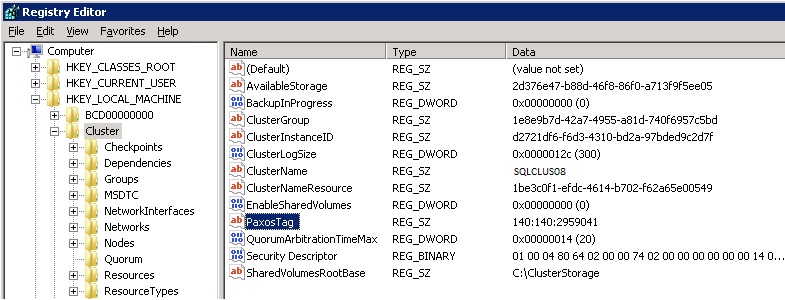
The "QuorumArbitrationTimeMax" and "QuorumArbitrationTimeMin" records are registry based (cluster hive).
"QuorumArbitrationTimeMax": Specifies the maximum number of seconds, that a node is allowed to spend arbitrating
for owning the quorum resource in a cluster. Default: 60 seconds.
In some very exceptional cases, it might be too low.
If MS Support instructs you to change it, you might use the "cluster" executable:
C:\TEMP\> cluster.exe /prop QuorumArbitrationTimeMax=x
(x in seconds, like for example 90)
7.3 Change the "Quorum drive":
This section is Potentially Dangerous! Before considering using this:crosscheck with other sources, or consult MS Support.
Change the "Quorum drive": Although often proposed as a "standard procedure", no fundamental change in Clustering should be seen
as "just a routine".
If you use the "Node and Disk Majority model" (used with an even number of nodes), or the "Disk only" model, and you experience
problems with the Quorum drive, or you know that the Quorum drive is in a bad state, or there is something wrong with this LUN,
then indeed it might be needed to change the "witness disk", or the Quorum, to another (new) LUN.
(A): The eventvwr and "Failover Cluster Manager events", should show evidence of Quorum drive troubles.
(B): The cluster log/report should show evidence of Quorum drive troubles.
If not (A) or (B) is indeed true, skip section 7.3.
The general outline is like this:
- Let the Storage Admin (or you yourself) create a LUN of at least 1GB. Perform tests on the LUN,
like chkdsk, copying files etc.. Then format it again with NTFS. - Add the new LUN to your failover cluster. Make sure it's visible in "available storage" in the Failover Manager.
- Perform the following in the Failover Cluster manager -> Choose More Actions -> Choose Configure quorum settings
-> Select the correct quorum model -> Make sure the new disk is selected. - The cluster will reconfigure your Quorum disk. After that, the new disk will be the active Quorum disk.
7.4 Starting the Cluster when the Quorum is not met (e.g.: insufficient Nodes):
This section is Potentially Dangerous! Before considering using this:crosscheck with other sources, or consult MS Support.
We already have seen this one before.
Please read section 1.2 first.
Then, move to section 2.1.
By design, a Cluster will not work if the number of "voters" is less than the required
minimum for a certain quorum model.
Depending on how many nodes are in the Cluster, a Cluster can survive the loss of one or more nodes.
However, if too many Nodes (and witness disk, if used) are unavailable, the Cluster shuts down.
However, if you must start the Cluster anyway, on the surviving nodes, the "/forcequorum" switch
might be considered.
Example:
In a 5 node Cluster, suppose that 3 Nodes are unavailable. But Nodes 1 & 2 are unharmed.
Then you can force the Cluster to "be up" on Nodes 1 & 2, using the following command on Node 1:
C:\TEMP> net start clussvc /forcequorum node1,node2
A powershell equivalent command exists too.
The cluster database on Node 1, is authorative, and it will be pushed to any running node,
or node that joins the Cluster again.
After Nodes have become online again, it depends on the architecture and Clustered applications,
if you still need to perform followup actions.
That's why any info in this note, has no more than a "hint status".
In general, I would advise a full shutdown, and restart again.
7.5 Starting a Cluster when no DC is available (bootstrapping):
Up to Win2K8 (inclusive), if no Domain Controller is available, you can't start a Cluster (if all was down).To my knowledge, it just will not work.
In Win2K12, it's possible to boot a Cluster, even if no Domain Controller can be contacted.
Although you have a functional Cluster, some Administrative actions cannot work, like adding a new Node.
This is usefull in any circumstance, but especially in virtualized environments.
Section 8. SQL Server 2012 Availability Groups.
8.1 Overview:
=> Clustering, Availability Groups and AlwaysOn:Here, you use Nodes with Win2K8 or Win2K12, where the "cluster feature" is installed on.
Then, you configure the cluster more or less in the usual way, that is, you have a number of "Nodes" and you use
a certain "quorum model".
So, you might have a 2 Node cluster, with a "disk witness" or a "file share witness". Or, you might just use
3 Nodes, without a disk or fileshare witness (see section 4).
However, from a technical standpoint, the Windows cluster is more easy to setup, since you typically do not use
"shared storage" on a SAN.
So, you can leave out the install of iSCSI or FC cards, and you do not have to configure SAN connections.
But you still need a "heartbeat" network, and a Public network which the clients use to connect to the services.
Not using a SAN may sound amazing! Maybe indeed..., but here is the "trick":
This type of cluster is Centered on SQL Server 2012/2014 Availability Group(s) (AG).
In the last phase of the cluster installation, you will work with SQL Server only.
Suppose we have a 2 Node cluster.
On node A, you create a SQL Server Instance, and create (or restore) databases on the Local storage of that Server system.
On the other node (node B) in the Cluster, you create a SQL Server Instance as well. It's important to understand that those Instances
are NOT clustered. They are just "local" instances on their own nodes. And both will be "up" all the time.
On node A you select one or more databases which needs to be placed in a "placeholder", an Availability Group, which you give
an appropriate name. It's just an abstraction which identifies those databases. Suppose you named it "Sales_AG".
On node B you tell the system that a "Replica" of "Sales_AG" needs to be installed, using the Local storage of that Server system.
Then, you select a "synchronization mechanism", which most typically will be the "synchronous-commit availability mode".
Using MS convention, on node A we have the "Primary replica", and on node B we have a "Secondary replica" (replica's of all databases in the Sales_AG).
Fig 6. AlwaysOn "Availability Groups": a "Primary AG" and it's "Replica(s)".
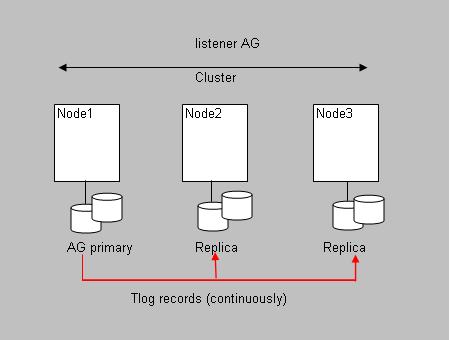
An availability group is the "mechanism" of a failover environment for a set of user databases.
So, those databases fail over together, as one "unit".
It's not exactly like a "traditional" SQL cluster. Here, if the Primary Node fails (where SQL runs on), then on another node,
a SQL Instance is started, and it takes over the "ownership" of Shared Storage (where the databases live), and other items like
the "virtual Service name" and the corresponding "virtual IP address". Then, after a very short while, the clients can reconnect
to that instance.
An AlwaysOn AG, consists of the (leading) Primary Replica on some Node, and one or more Secondary Replica's on other Nodes.
If the primary Node fails, the primary and the secondary role (on some preferred node) are switched,
thus providing for High Availability. So, what once was a secondary replica, now becomes the (leading) primary replica
Note that the SQL Instances on all Nodes are up and running all the time.
Also note, that the replica's usually are stored on local disks on those Servers. Ofcourse, that can be a local diskarray
using some RAID level itself. But it can also be just a local disk, without RAID.
The "protection" or "HA", sits in the fact that the replica's are distributed over 2 or more Nodes. One node has the Primary,
and other nodes have secondary replica's, which are in "sync" with the primary.
The more Nodes you use, the more "Always On" your system gets.
If the primary fails, and you have setup AlwaysOn using the "synchronous-commit availability mode", then an "automatic failover" without dataloss will occur.
A manual failover is possible too. Using the example above, where we discussed the Sales_AG Availability Group, then logon
to the secondary SQL instance (node B), and use the SQL command:
ALTER AVAILABILITY GROUP Sales_AG FAILOVER;
Then, after a short while, the primary and secondary roles are "switched", and now Node B is the leading one.
=> The listener:
Since the Primary replica, may "fail over" to another replica on another node, we need to have a "means" that
enables clients to reconnect to the new Primary Instance, without changing anything on the clients at all.
This is handled, both at a traditional Cluster, and with an Availability Group, by using a Virtual IP.
In DNS, a "Network name" is registered. This Network name represents the name to which clients connect to a SQL service.
With that "Network name", an IP address is associated. Clients just resolve the Network name to that IP, using DNS.
Now, if a new Node takes over the primary role, we only need to assure that now the new instance listens on that IP.
This is handled by the "listener". So it makes sure that the new instance that takes over the role of the Primary, assumes
that "Network name" and the associated (virtual) IP address.
To set up an "Availability Group", is really easy to do using the SQL Server Management Studio.
However, you have to have some point straight beforehand, like which databases will go into the Availability Group,
and which synchronization mode you must select during setup.
I am not going into that, but please read the following note.
Note:
If you want a few gentle introductions on how to setup a simple Cluster and "Availability Groups", you might take a look
at the following blogs/articles. The first one is very easy, and can be read in minutes. The second one (3 parts), provides for
more info, and takes a bit longer to study, but still is great stuff to read.
article 1 (blogs.technet.com).
article 2 (in 3 parts) (www.mssqltips.com).
8.2 Methods for a manual failover:
If you would take a look again at figure 4, you see the "Failover Cluster Manager", but in that figure, a traditionalCluster was used.
Here, if I would rightclick the "sqlacc" instance, one of the choices would be "Failover to another node...".
Ofcourse, in an AlwaysOn environment you have a functional "Failover Cluster Manager" too, but you should not use it
to perform a manual failover.
That might strike you as strange indeed. You can use it, under some circumstances, but Microsoft strongly recommends using:
- the "ALTER AVAILABILITY GROUP" SQL statement, just as we have seen above.
- a Powershell statement.
- just simply use the graphical SQL Server Management Console (SSMS).
In my view, the "ALTER AVAILABILITY GROUP" is probably the easiest way. Even if you have multiple AG's, just repeat
the statement for all AG's that must failover.
8.3 SQL Server system views:
Document your cluster extensively. Use printscreens and whatever else that looks usefull.Some SQL Server "system views" might be helpfull as well. The metadata in SQL Server, has some
interesting material too.
For example, take a look at (using "select * from ..."):
select * from sys.dm_hadr_availability_group_states
select * from sys.dm_hadr_availability_replica_states
select * from sys.dm_hadr_database_replica_states
select * from sys.dm_hadr_database_replica_cluster_states
select * from sys.dm_hadr_availability_replica_cluster_nodes
select * from sys.dm_hadr_instance_node_map
select * from sys.dm_hadr_name_id_map
select * from sys.dm_tcp_listener_states
select * from sys.availability_groups
select * from sys.availability_groups_cluster
select * from sys.availability_databases_cluster
select * from sys.dm_hadr_instance_node_map
select * from sys.availability_replicas
select * from sys.availability_group_listener_ip_addresses
select * from sys.availability_read_only_routing_lists
select * from sys.availability_group_listeners
Ofcourse, quite a few of them, can also be used to monitor, for example to view the current state of the AG's, the synchronization states,
and other "health" information.
Just try the queries, then use the queries with selections of some columns of interest. Then you might try some joins, and see
what can be usefull in your situation.
Here are a few of my own queries and joins:
(1). Which databases reside under which AG:
select substring(g.name,1,20) as "AG_Name", substring(d.database_name,1,20) as "Database"
from sys.availability_groups_cluster g, sys.availability_databases_cluster d
where g.group_id=d.group_id
(2). Which databases reside under which AG under which Instance:
select substring(g.name,1,20) as "AG_Name", substring(d.database_name,1,20) as "Database", n.instance_name
from sys.availability_groups_cluster g, sys.availability_databases_cluster d, sys.dm_hadr_instance_node_map n
where g.group_id=d.group_id AND g.resource_id=n.ag_resource_id
order by n.instance_name
(3). Checking the Health of the Replica's on an Instance:
select replica_id, substring(db_name(database_id),1,30) as "DB", is_local, synchronization_state_desc, synchronization_health_desc,
log_send_rate, log_send_queue_size
from sys.dm_hadr_database_replica_states
(4). Showing Availability Groups, and their listeners and VIP's:
select substring(g.name,1,20) as "AG name" , l.listener_id,
substring(l.dns_name,1,30) as "Listener name", l.port,
substring(l.ip_configuration_string_from_cluster,1,35) AS "VIP"
from sys.availability_groups g, sys.availability_group_listeners l
where g.group_id=l.group_id
(5). Checking if the Secondary Replica's on INST3 are "good" to perform a Fail Over. See also query (3).
select * from sys.dm_hadr_database_replica_cluster_states
where replica_id=(select replica_id from sys.availability_replicas
where replica_server_name ='INST3')
-- Other queries:
select replica_id, database_name,is_failover_ready
from sys.dm_hadr_database_replica_cluster_states
select substring(group_name,1,20) as "AG_Name",
substring(replica_server_name,1,35) as "Instance_Name",
substring(node_name,1,30) as "Node_Name"
from sys.dm_hadr_availability_replica_cluster_nodes
select substring(dns_name,1,30) as "DNS_LIstener_Name", port,
ip_configuration_string_from_cluster from sys.availability_group_listeners
select replica_id, substring(replica_server_name, 1,30) as "REPLICA_Server_Name",
substring(endpoint_url,1,30) as "Endpoint", availability_mode_desc
from sys.availability_replicas
Some of the above queries show the status of your AG's, replica's. and listeners.
8.4 Synchronization modes:
You create the primary replica, and one or more secondary replica's on other nodes.Note that all SQL Server instances on all nodes, are "up and running" all the time (unless one fails ofcourse).
During setup, you have to choose between a few "synchronisation models". The models differ in how a transaction
at the primary is considered "to be completed".
If you require that a transaction at the primary replica, is complete, only if the secondary has received the transaction log
vectors too and applied them, then choose the "synchronous-commit availability mode". This also enables an "automatic Failover".
If a problem at the primary arises. An unattended failover is possible, since the primary and secondaries are always fully synced,
and no dataloss is guaranteed at all times. So, we can safely enable an (unattended) "automatic Failover" if it's neccessary.
However, at a high transaction rate, you must be sure that all components (like network latency) must not "spoil" things.
But, in my experience, it's almost always possible to choose the "synchronous-commit availability mode".
Also, this one is most recommended, since it enables an (unattended) "automatic Failover".
The other two modes do not enable an (unattended) "automatic Failover". So, they are much less desireable.
For example, the "High Performance" mode, means that a tranasction at the primary may complete, and the commit does not have
to "wait" for the secondaries to have completed too.
It's "High Performance" in the sense that an application only have to wait for a commit on primary replica, before a transaction
is complete, and waiting for the completion of the transaction on the secondary replica is not needed.
As said, it's lesser desireable, but if the transaction rate is high, and network bandwith is low, maybe you are forced to
choose this one.
If you want to see another one of my notes, specifically on "AlwaysOn", then use this link.